Pictello is an app that helps you make a social story, a visual schedule or even a slide show of pictures.
Each page in a Pictello story consists of a photo or video and some text, which can be read aloud by a Text to Speech voice or your own voice.
How to create a story in Pictello:
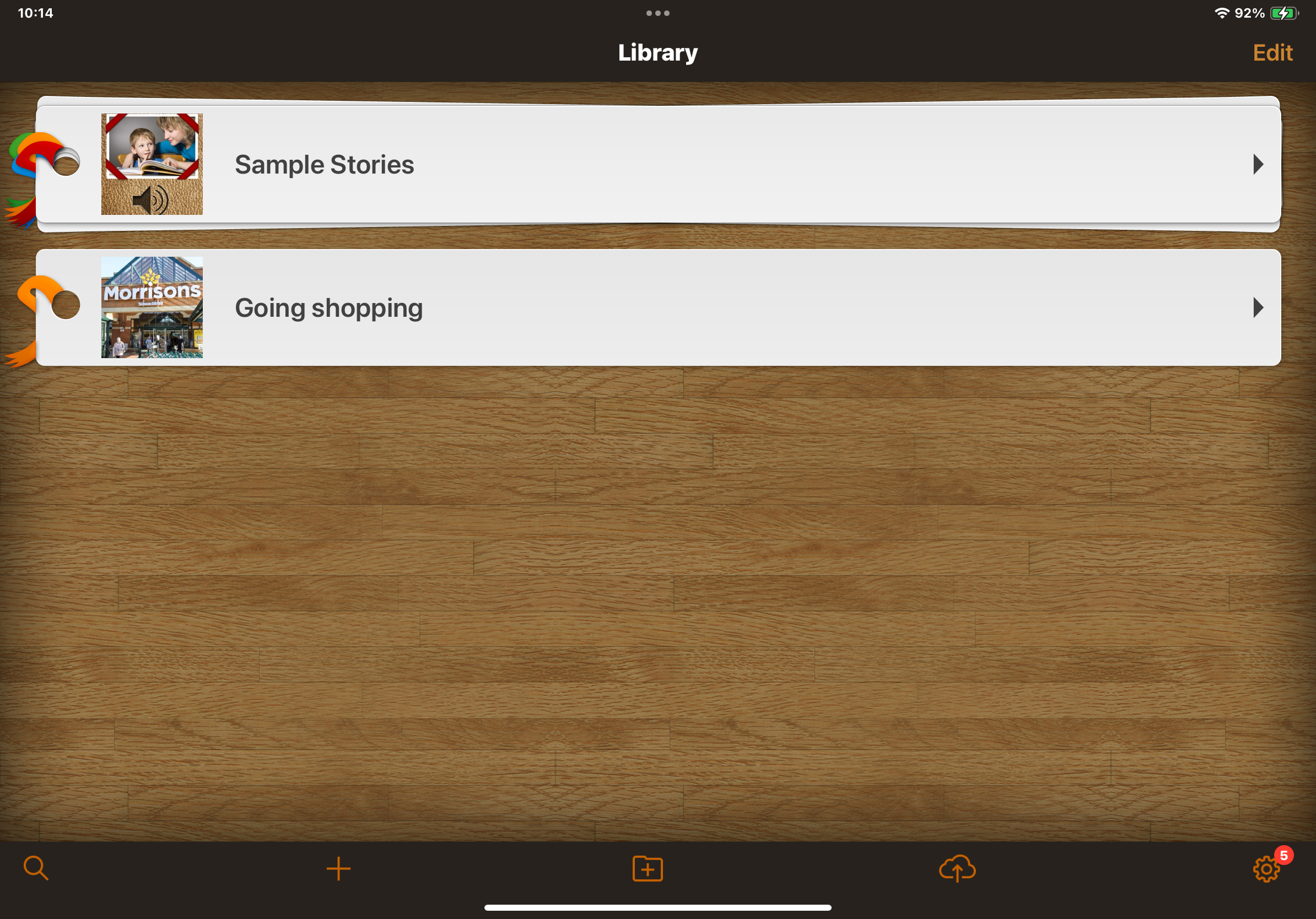
1: Open Pictello and select the plus sign in the toolbar to create a new story.
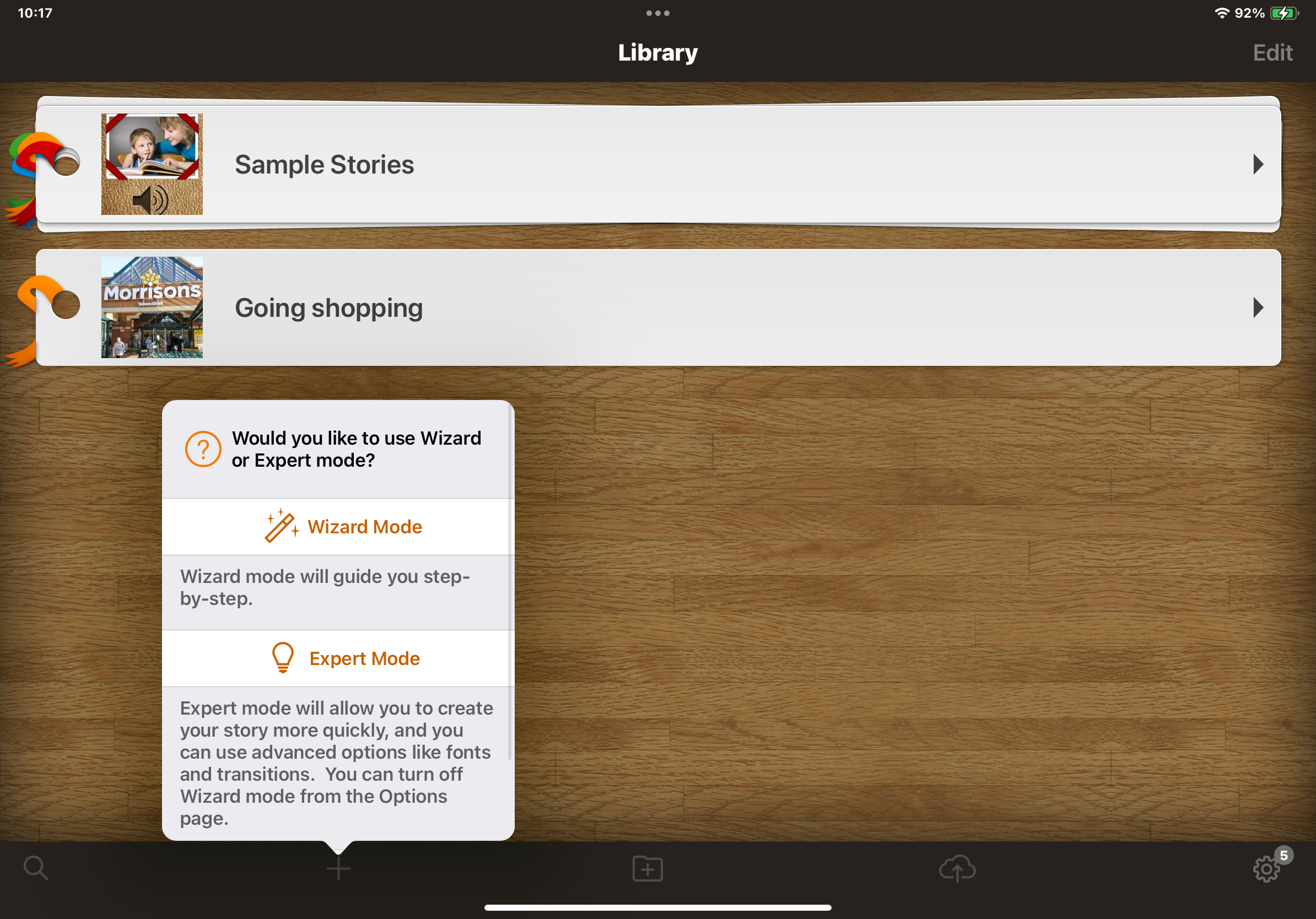
2: You can choose between Wizard and Expert mode. Choose Wizard to make the process a little easier.
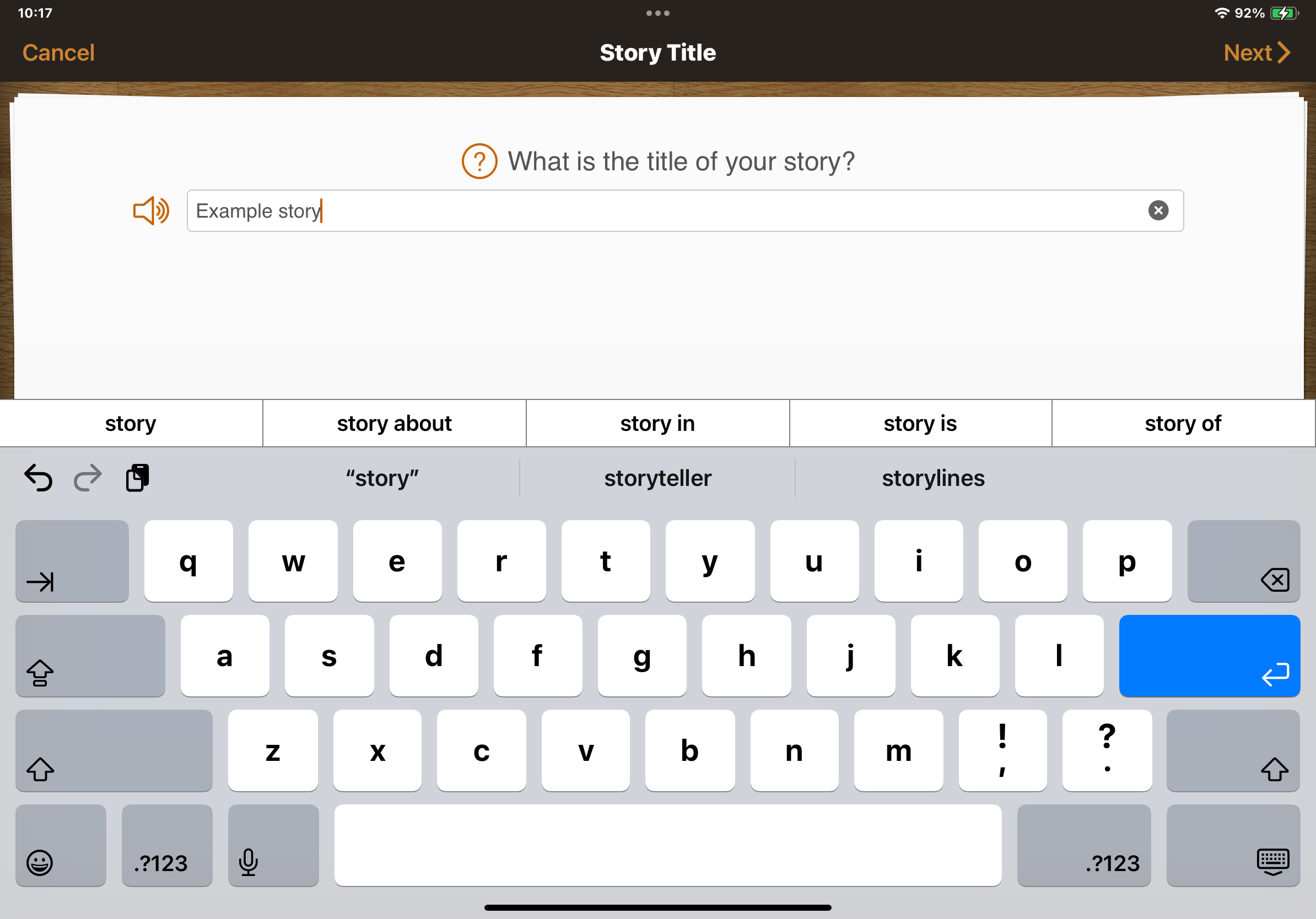
3: Give the story a title that matches what it is about, select Enter on the keyboard and then Next at the top right
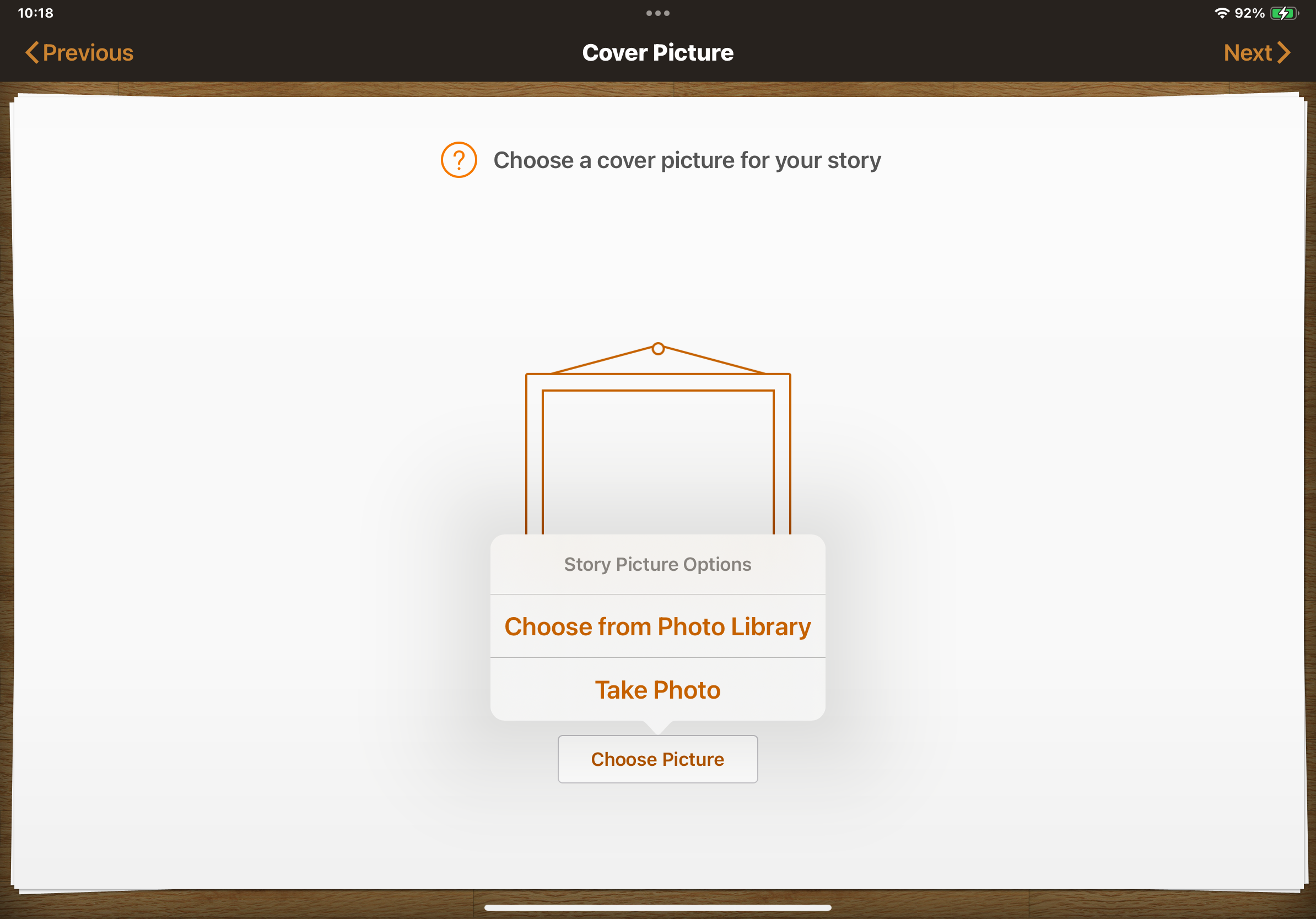
4: To add a title page for the cover, select Choose Picture and then Choose from Photo Gallery to find a picture saved to the iPad.
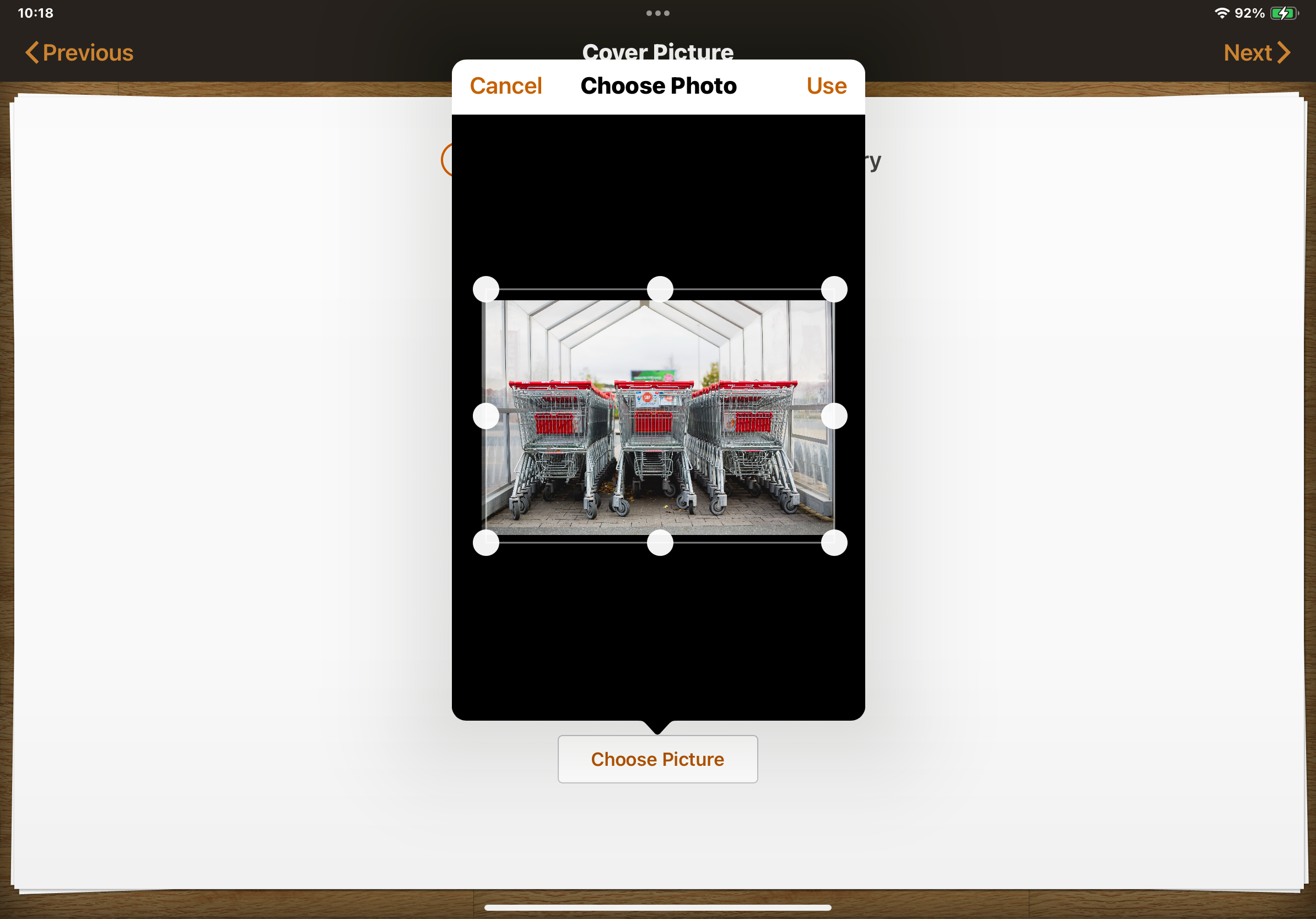
5: You can crop the picture to adjust it if you wish to. Click Use when done.
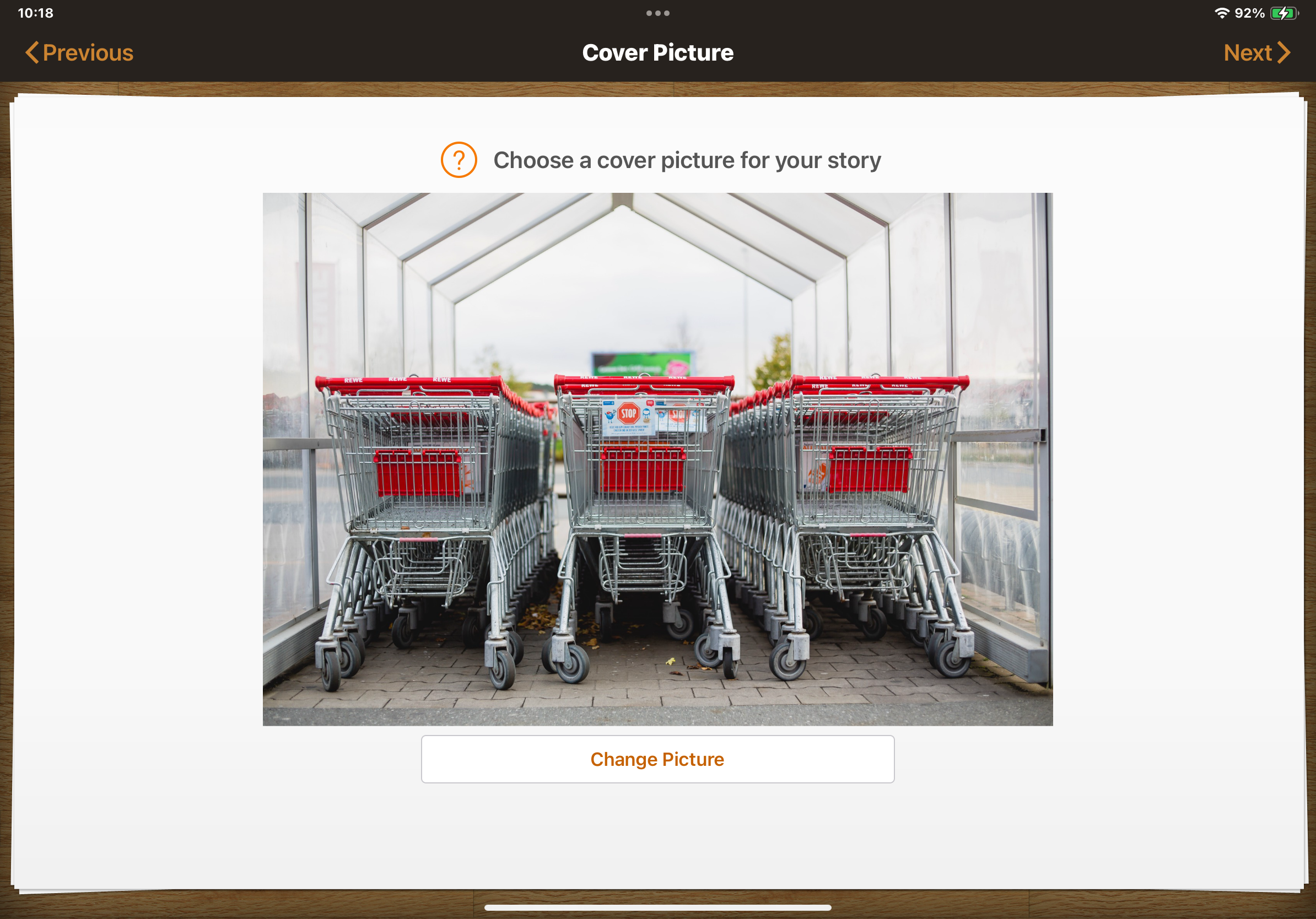
6: Select Next when done.
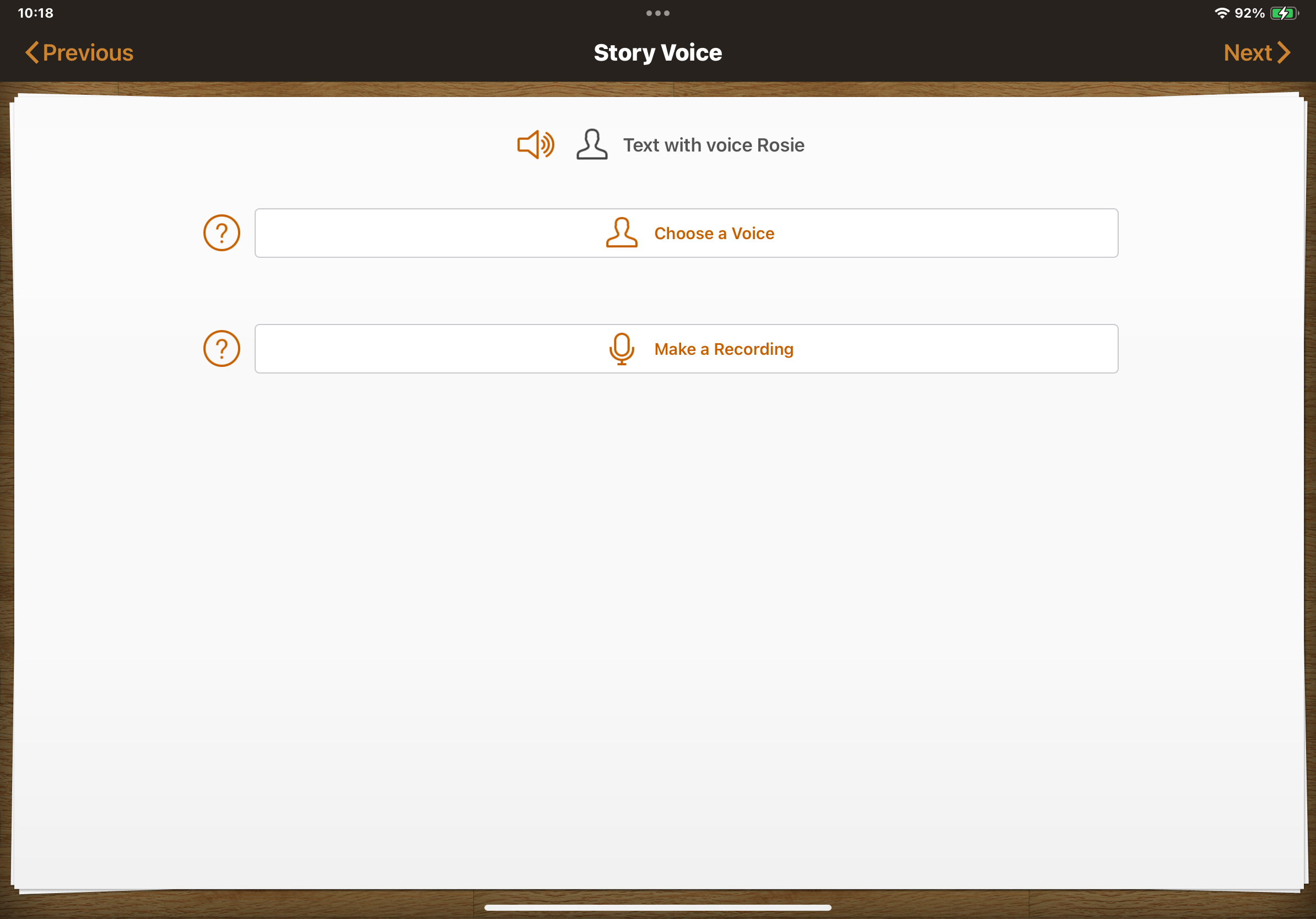
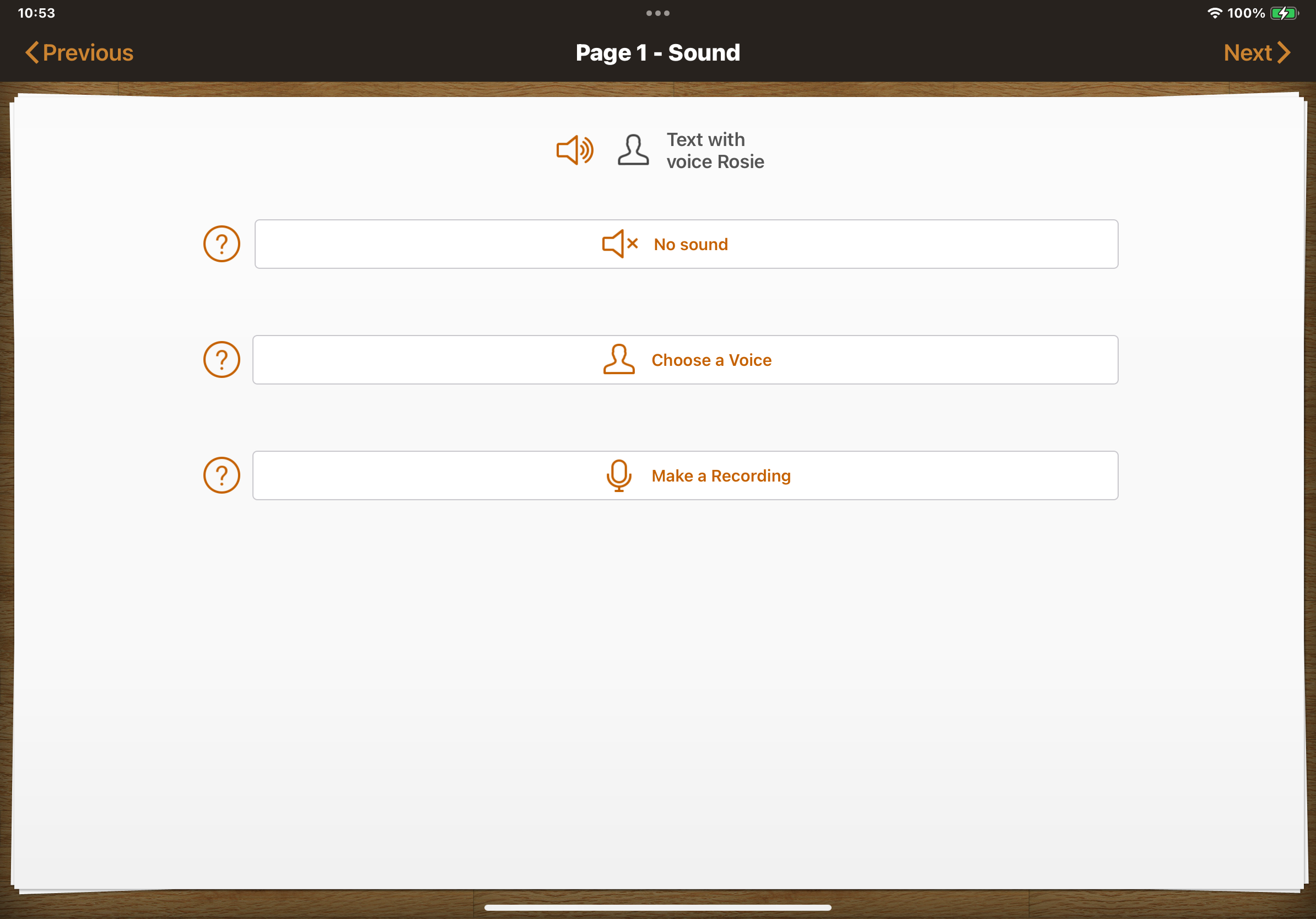
7: Next choose the sound for the title page. You can Choose a Voice to read it out or Make a Recording to use your own voice.
At first, it may be easier to use the default voices. Click Next when you have chosen.
8: Next select Add a Page to create the main pages of the story.
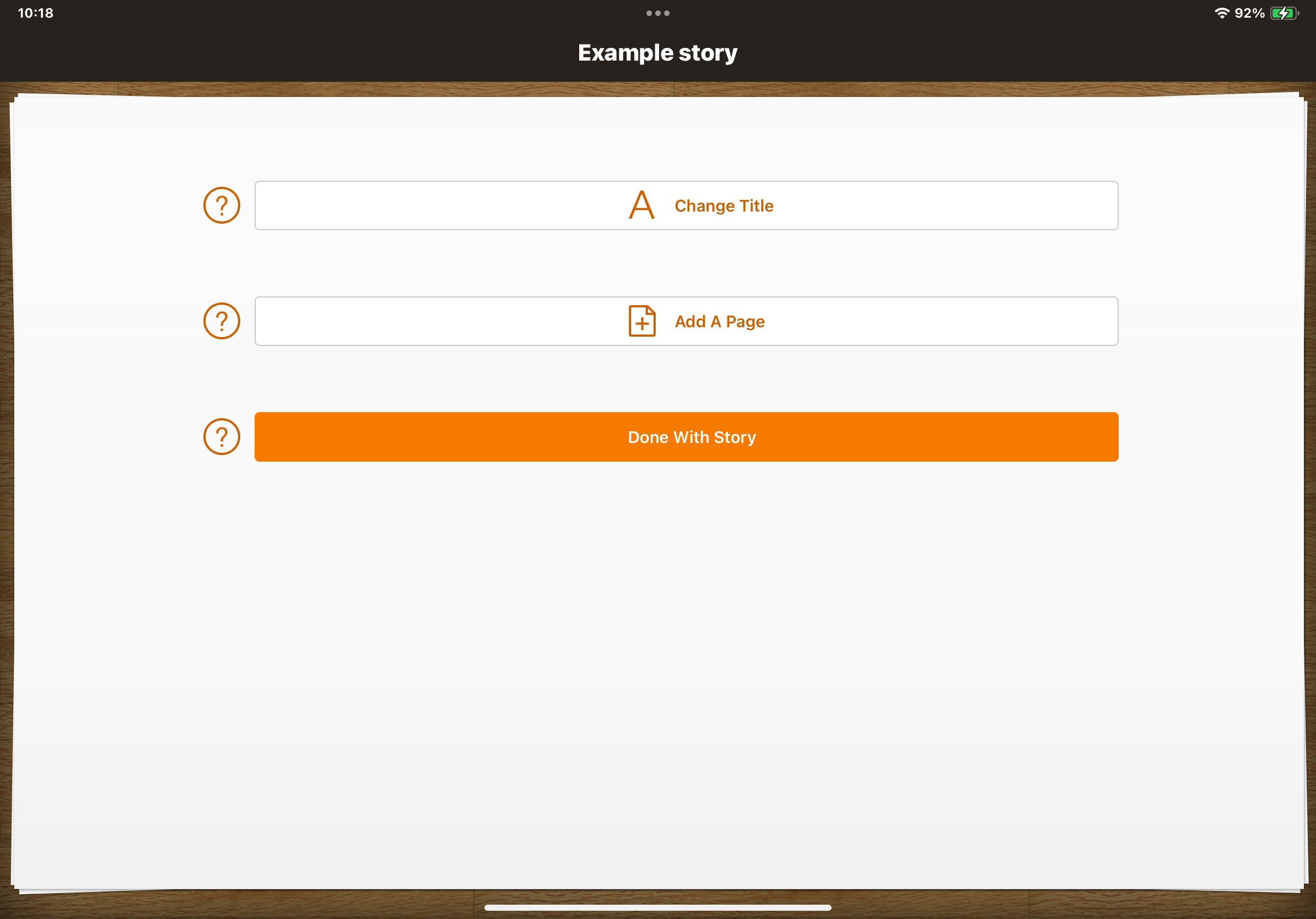
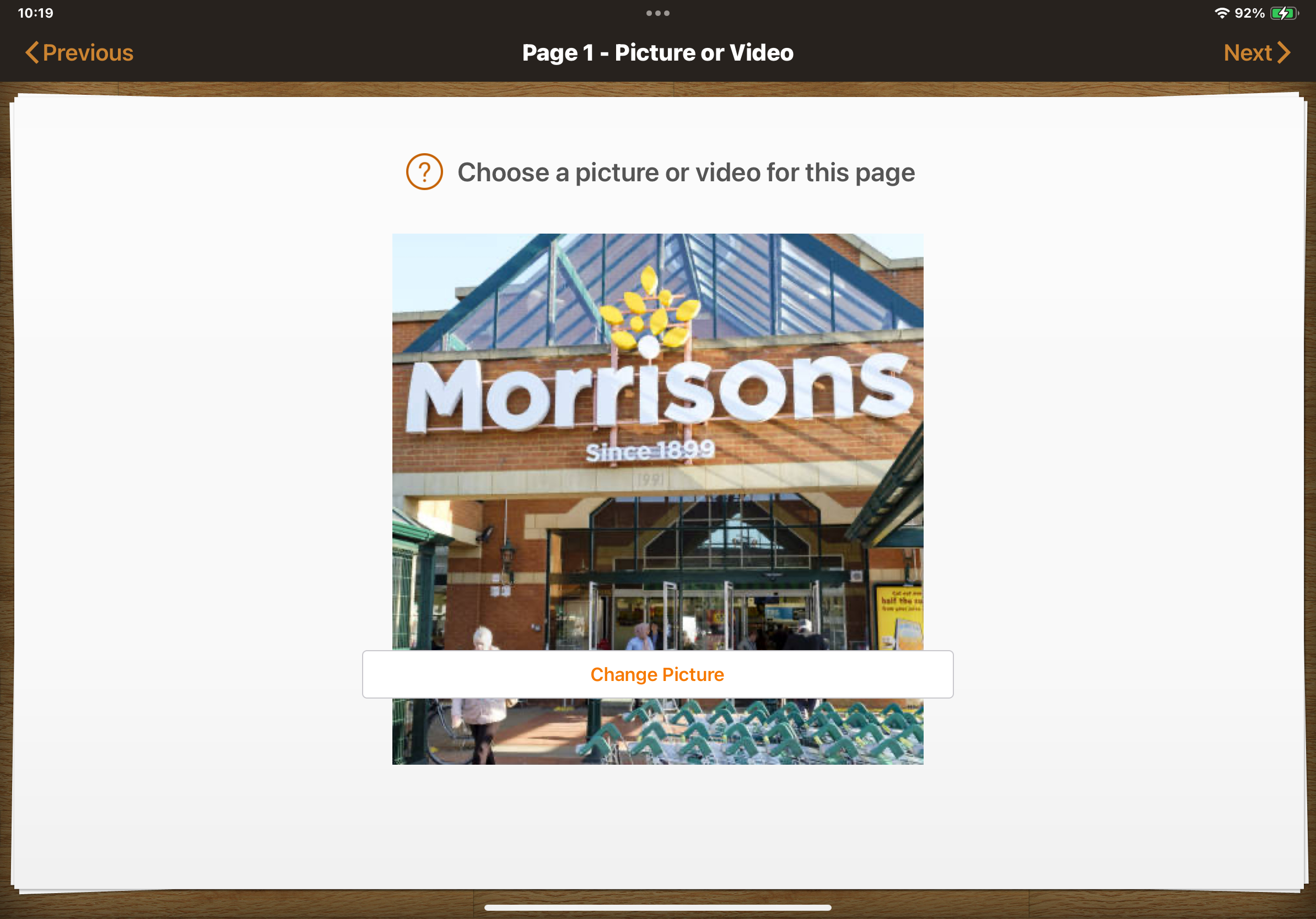
9: Choose a Picture to be used for this page.
The best pictures to use are clear, specific pictures with just the most important information shown.
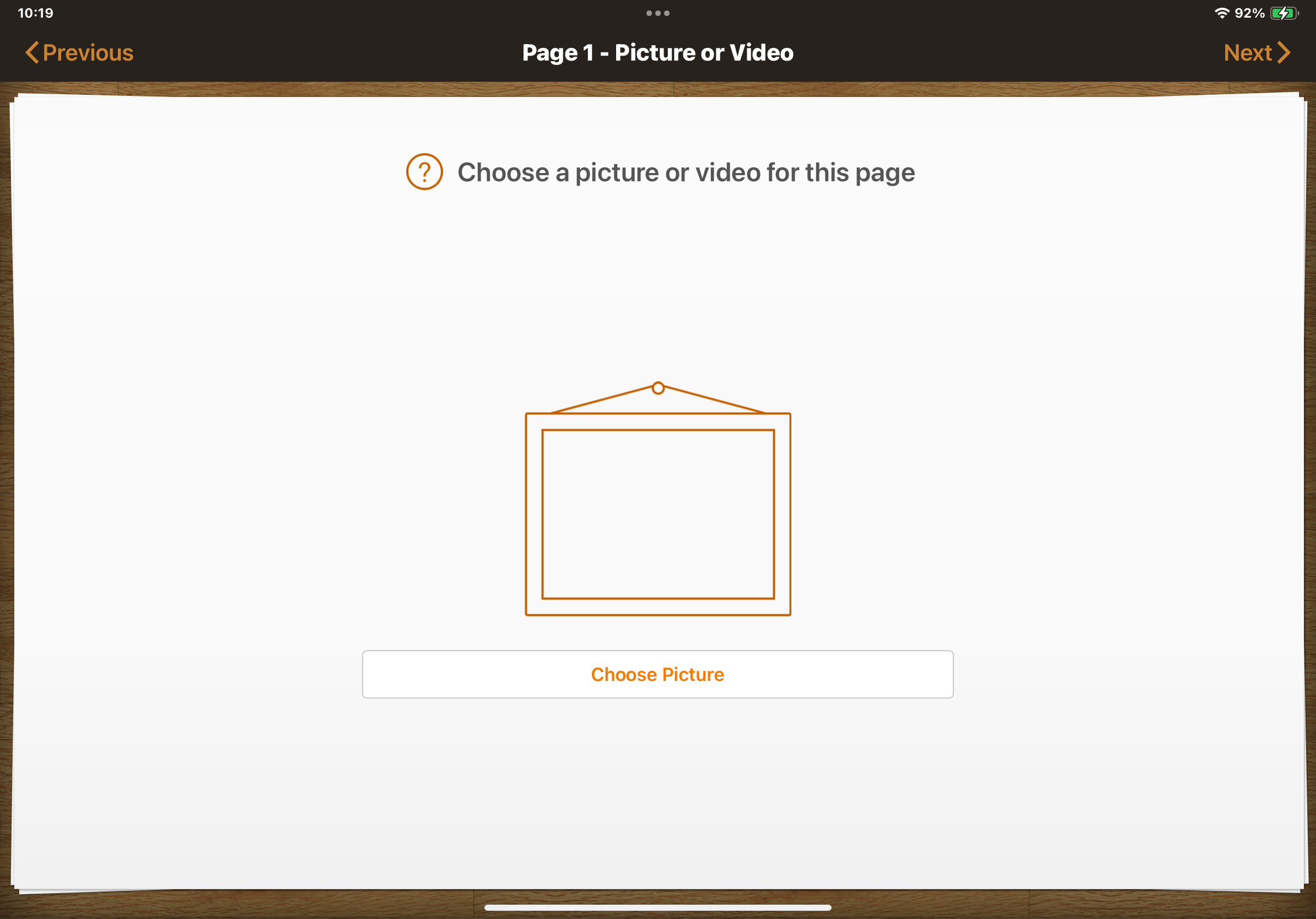
10: Once chosen, select Next.
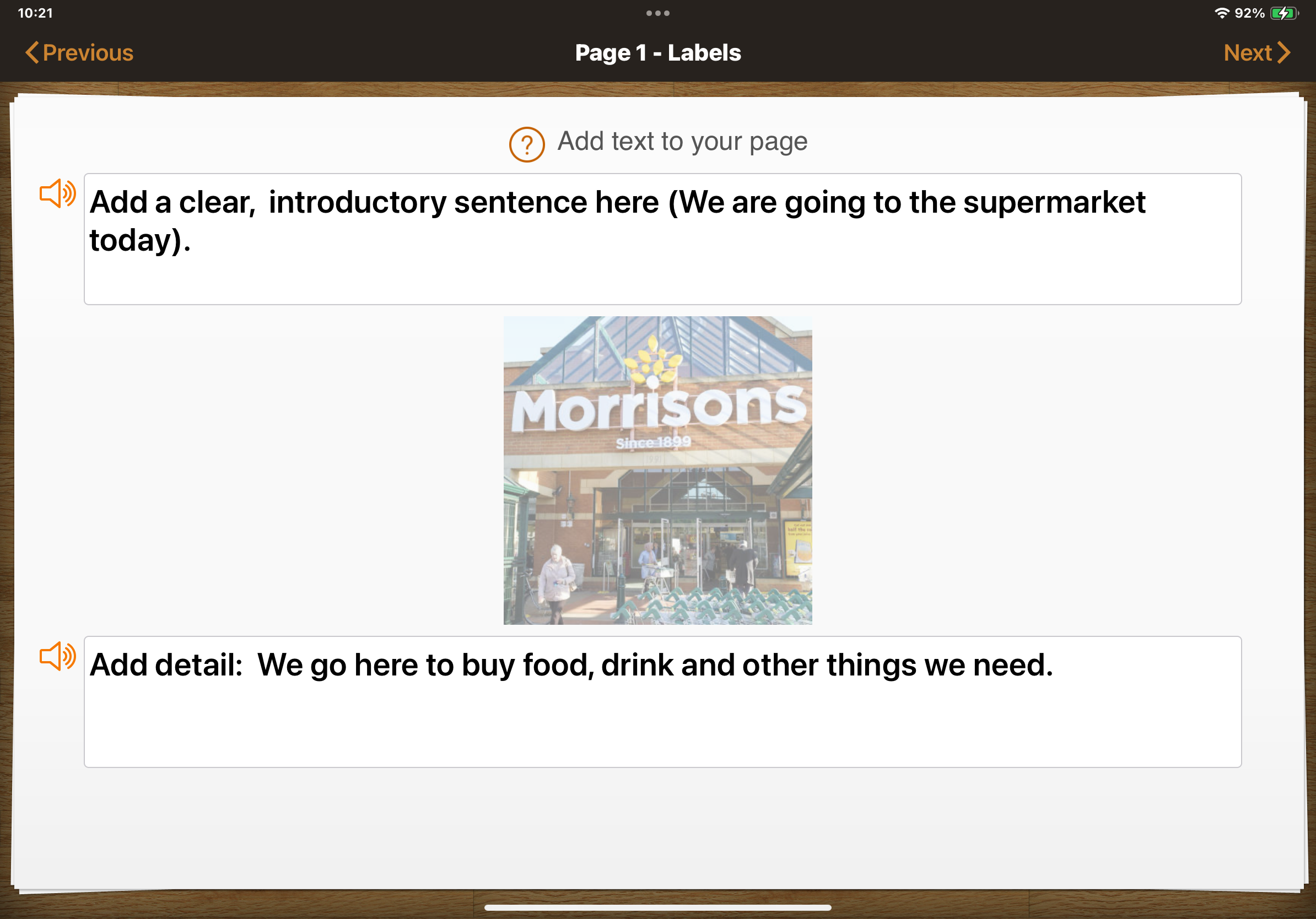
11: You can then add captions above and below the pictures.
I recommend using short, clear sentences that state what is happening and why it is happening.
Select Next when finished.
12: Choose how you want this page to be read, just like with the title page.
Select Next when done.
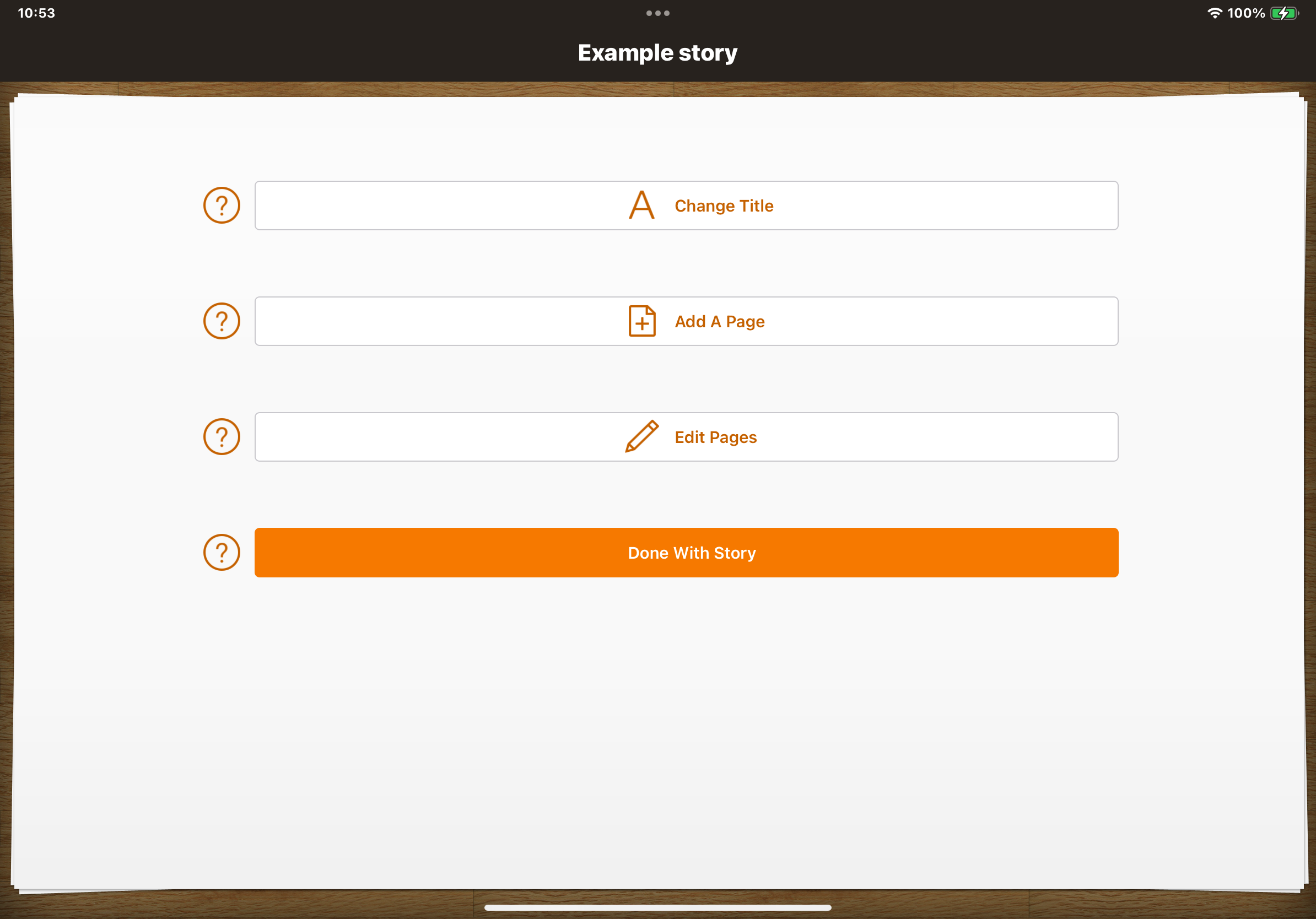
13: You can then either Add a Page or be Done with Story.
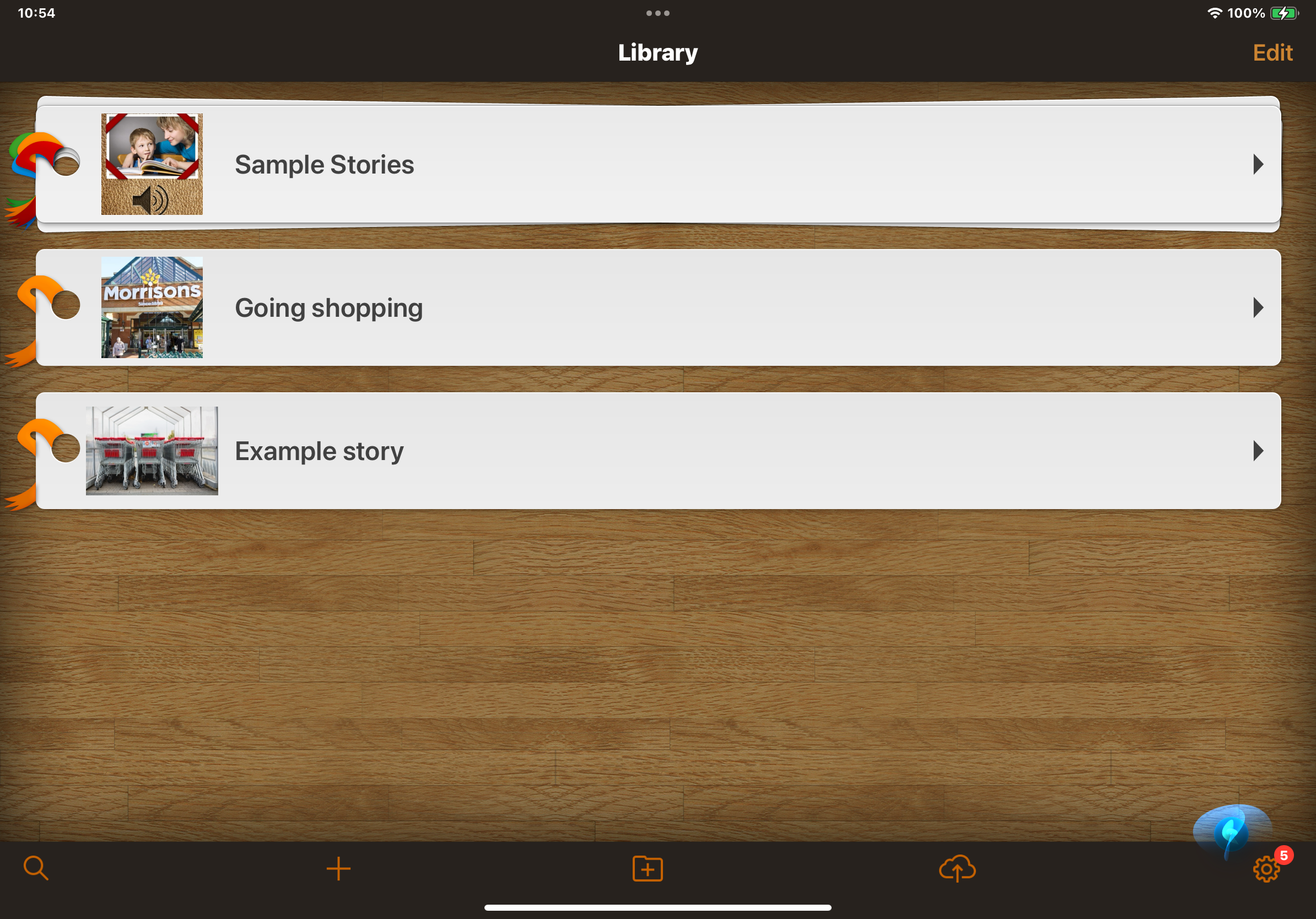
14: The finished story will appear on the Library page.
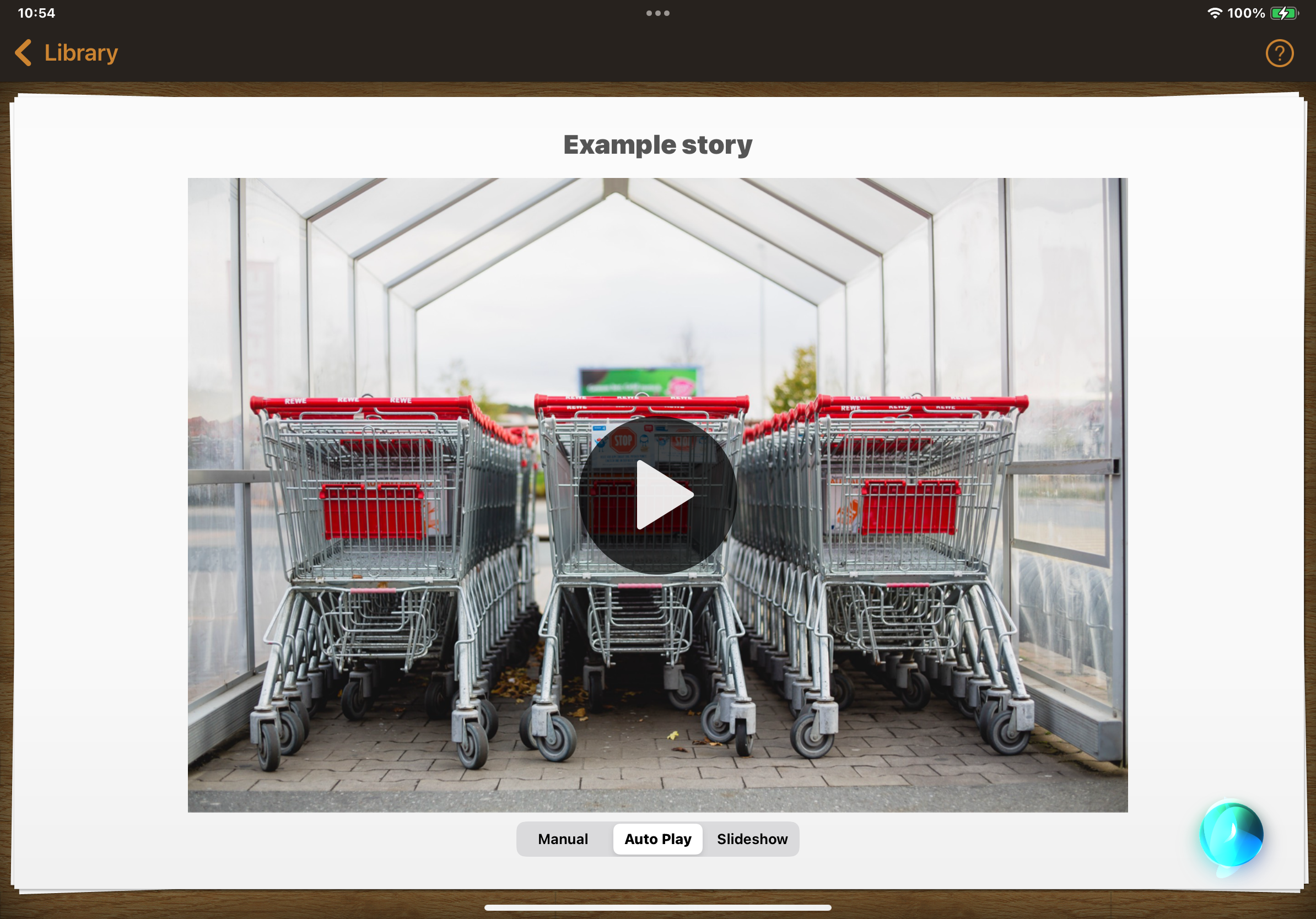
Select it to play.
15: There are 3 options to choose from:
Manual: You tap to play each page and must turn pages yourself.
Auto Play: Reads automatically, tap to go to next page.
Slideshow: Automatically turns pages and reads content.